Read and send email
Reading an email message
To read an email message, go to the sidebar and select the folder where the message is located. Then, click on the message that you wish to read within the message list.
Note
If the option "Show messages as conversations" is activated, the messages belonging to a single conversation will be grouped under the most recent message. To display/hide the conversation content, click on the number of messages present.
Note
If the option "Show messages as conversations" is active, the actions performed on a compacted conversation affect all the messages in the conversation. To carry out an action on a single message, expand the conversation and select the message that you wish to act on.
Composition window
It is possible to open multiple composition windows at the same time (up to a maximum of 5) and also compose a message in full screen using Focus mode.
The composition window can be resized and moved. Drag the borders to resize the window, or drag the top black bar to move it.
By clicking on Restore window  , the window will return to its original position and size.
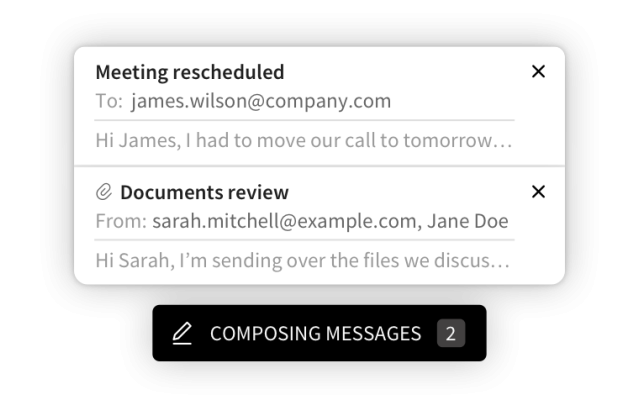
To minimize the window, click on Minimize window : minimized windows are grouped into a small box displayed at the bottom of the page. By clicking on the box, the list of messages currently in composition is displayed (up to 5 messages at the same time), allowing you to reopen the desired window.
Each item in the list shows:
- Message subject
- Recipients (the email address is displayed if the recipient is not in the address book, otherwise the contact name is shown)
- Short message preview
Write and send a new email message
To open the window and start composing a new email message, click on the button New message or  in the sidebar. Fill in the required fields (receiving email address; subject; body of text) and click on the Send button to send your email.
You are free to have several composition windows open simultaneously, as well as to compose a message in full screen.
To select a different sending identity, click on the From field and select the identity that you wish to use to send the message.
Note
It is possible to select a different sending identity only if one or more aliases have been associated to your account.
By clicking on  and dragging the email addresses, it is possible to move them between the To, Cc and Bcc fields.
To manually save a draft email message, click on the save icon  at the bottom of the composition window while you're writing, or choose to save as draft when closing the composition window.
Note
New messages are saved automatically while you type, at regular intervals.
To add one or more attachments to an email message, click on the Attachments icon  in the lower of the composition window. Then, select the files that you wish to attach to the message or drag them straight into the composition window.
Note
You can attach files up to a maximum of 50MB total.
Clicking on the located at the bottom of the message composition window allows you to:
- specify the priority by clicking on the High Priority item
- request the confirmation of reading once the message has been sent by selecting the Confirmation of reading item
- receive the confirmation of delivery by selecting the Confirmation of delivery item
- edit a message in simple text mode (.txt) by selecting the Simple text mode item.
Reply / forward an email
To reply to an email message, click on the message you want to reply to and choose one of the options, among those available, by clicking on the corresponding icon.
Note
When you reply to a message, the Webmail automatically selects the correct identity based on the email address the message was sent to.
| Icon | Action | Description |
|---|---|---|
 |
Reply | Compose a message in which the To field is automatically filled in with the sender's address you are replying to. |
 |
Reply to all | Compose a message in which the To and Cc fields are automatically filled in with the addresses of the sender and of the other recipients to whom you are replying. |
 |
Forward | To forward an email, click on the message you wish to forward and click on the forward icon to open the composition window. |
 |
Quick answers | Choose a predefined thank-you message from the available options, where the To field is automatically filled in with the sender’s address you are replying to. |
Note
You can also reply/forward a message by right-clicking on the message in the message list and selecting the action you wish to take.
Actions on an email message
To carry out an action on an email message, click on the message that you want to take action on and select the corresponding icon from the ones available.
Note
You can also carry out an action by right-clicking on the message in the message list and selecting the action you wish to perform.
| Icon | Action | Description |
|---|---|---|
 |
Tag | Mark the message as favorite. |
|
Reply | Compose a message where the To field is automatically filled in with the sender's email address. |
|
Reply all | Compose a message where the To and Cc fields are automatically filled in with the addresses of the sender and other recipients whom you are replying to. |
|
Forward | Send the message content as the body of a new message. |
 |
Delete | Delete the message. |
|
Quick answers | Choose a predefined thank-you message from the available options, where the To field is automatically filled in with the sender’s address you are replying to. |
 |
Create Task | Create tasks starting from the received message. |
 |
Mark as spam | Mark the message as Spam and automatically move it to the corresponding folder (Spam). |
 |
Mark as Not Spam | Mark the message as Not Spam and automatically move it to the corresponding folder (Inbox). |
 |
Archive | Move the message to the Archive folder. |
 |
Print the message. | |
|
Other | |
 |
Mark as unread | Mark the message as unread. |
 |
Mark as read | Mark the message as read. |
| Label | Assign a label to the message. This function is available only if at least one label has been created. | |
| Move to | Move the message to a folder. | |
| Copy to | Copy the message to a folder. | |
 |
Show as source | View the message source code. |
|
Forward as an attachment | Create a file in EML format and send it as an attachment to a new message. |
 |
Modify as new | Create a new message by pre-filling the fields with those of the selected message. |
 |
Download | Download the message in EML format. |

